|
First time trying one of my Tutorials? Then please check my Terms of Use before you continue
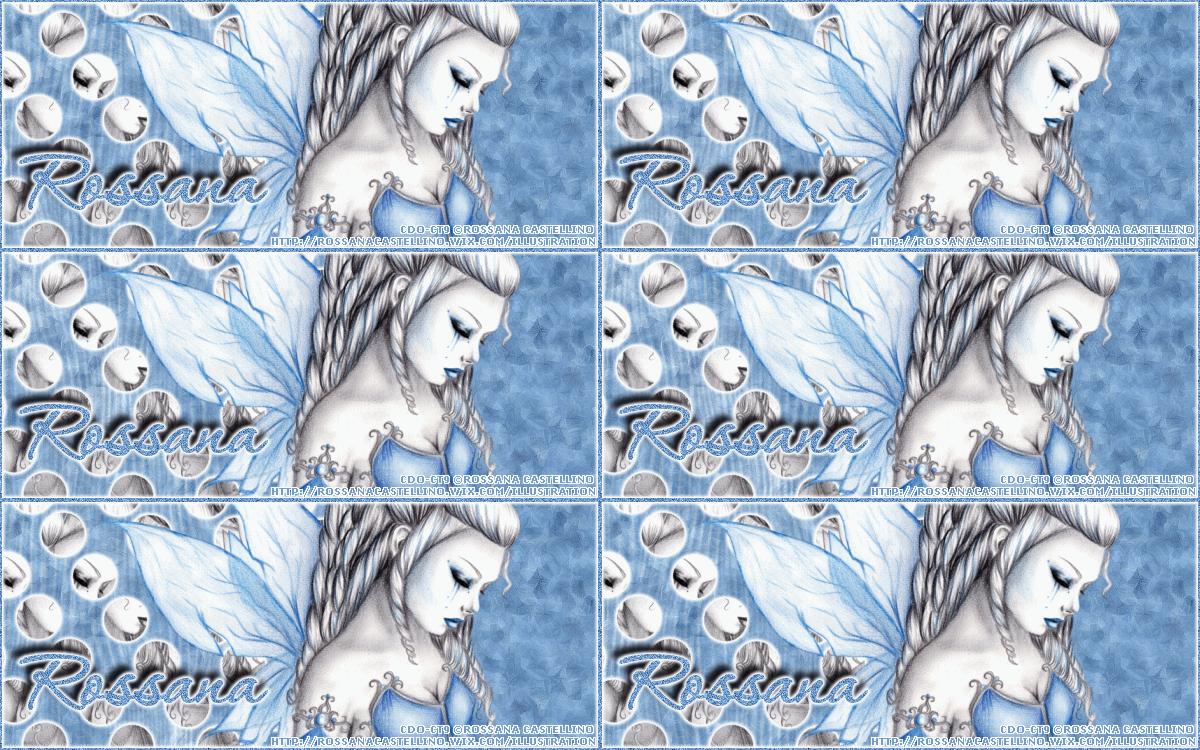
You will need: Font of your choice - I used one called P22_Corinthia Tube of your choice - I will be using the artwork of Rossana Castellino This artist is not currently selling their art in Tube Format Preset shape of your choice - I used PSP's own Ellipse Please Note: Your Animation may look different to mine depending on your version of Animation Shop, I use 3.11
Filters: Eye Candy 6: Textures/Swirl Mura's Meister/Copies Eye Candy 6/Gradient Glow
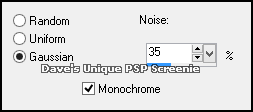
Ok let's begin Change your Background to White and Foreground to a color from your Tube Open a New Image 600x250 ... Flood Fill with your Foreground color Adjust> Add/Remove Noise> Add Noise ... with the following settings
Effects> Eye Candy 6: Textures> Swirl Click on the "Settings" tab and then on the "Settings Tour (seamless tile)" folder then click on "Painterly: Frosted Glass " so it is highlighted blue Click on the "Basic" tab and change the Streak Detail to 50 ... be sure to click the "Random Seed" button once as well ... Rename this layer Background
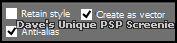
Activate your Preset Shape Tool and select your shape of choice ... Match these settings
Make your Foreground color Transparent/Null ... Draw out your shape (check my tag for idea of size) Adjust> Align> Center in Canvas ... Layers> Convert to Raster Layer ... rename this layer Shapes
Effects> Mura's Meister> Copies ... Tiling(angle) ... change the Tile Gap to a suitable amount (I chose 5) Paste your Tube as a New Layer ... position slightly to the right (see my tag for positioning)
Layers> Duplicate ... Activate the Bottom Tube layer Effects> Mura's Meister> Copies ... *Line Activate the Shapes layer ... Selections> Select All ... Selections> Float ... Selections> Defloat Selections> Invert ... Activate the Bottom Tube layer
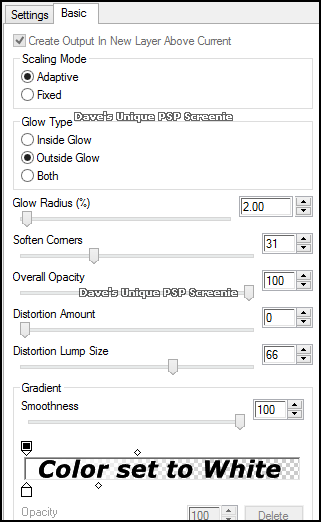
Hit DELETE on your keyboard ... Selections> Select None Change this layers Blend Mode to Luminance(L) ... Layers> Merge> Merge Down Important Step: Selections> Select All ... Selections> Clip to Canvas ... Image> Crop to Selection Effects> Eye Candy 6> Gradient Glow ... with the following settings
Activate the Tube layer and apply a suitable Drop shadow ... Layers> New Raster Layer Flood Fill with your Foreground Color Adjust> Add/Remove Noise> Add Noise ... with the same settings as earlier Selections> Select All ... Selections> Modify> Contract by 2 ... Hit DELETE on your keyboard Selections> Select None Effects> Eye Candy 6> Gradient Glow ... with the same settings as earlier
Add Copyrights and your Name
Using your Selection Tool with the Selection Type: Rectangle Make a Selection from the Right side of your Tag to half way across your Tube like so
Activate the Shapes layer ... Hit DELETE on your keyboard Selections> Invert ... Activate the Background layer ... Edit> Copy
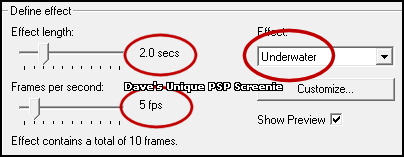
ANIMATING Now open Animation Shop Edit> Paste> As New Animation ... Effects> Insert Image Effects
Click on the Customize button
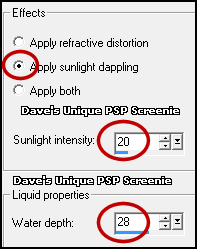
Change the first 10 waves to the following Wave 1: X 25 ... Y -28 Wave 2: X -54 ... Y -15 Wave 3: X -56 ... Y -38 Wave 4: X -41 ... Y 35 Wave 5: X -54 ... Y 24 Wave 6: X 41 ... Y 37 Wave 7: X 54 ... Y 8 Wave 8: X -56 ... Y 0 Wave 9: X 27 ... Y 49 Wave 10: X 57 ... Y -23
Set all other waves to X 0 ... Y 0 Click on OK then on OK again ... DELETE the first Frame
Go to Animation Shop ... Edit> Paste> As New Animation
Activate your Animation ... Edit> Select All ... Edit> Copy Activate your Tag ... Edit> Select All ... Edit> Paste> Into Selected Frames Move into position on the left side of the Tag and click once (I zoomed in to help with positioning) Close the Animation as it is no longer needed
Return to PSP ... Hide the Background layer ... Edit> Copy Special> Copy Merged Go back to Animation Shop ... Edit> Paste> As New Animation Hold down CTRL and keep pressing L until you have the same amount of frames as your Tag (should be 10)
Edit> Select All ... Edit> Copy Activate your Tag ... Edit> Select All ... Edit> Paste> Into Selected Frames Move into position and click once (I zoomed in to help with positioning) Edit> Select All ... Animation> Frame Properties ... change to 15
Tutorial written on the 07/10/2013 ©David Hanslip |