|
First time trying one of my Tutorials? Then please check my Terms of Use before you continue
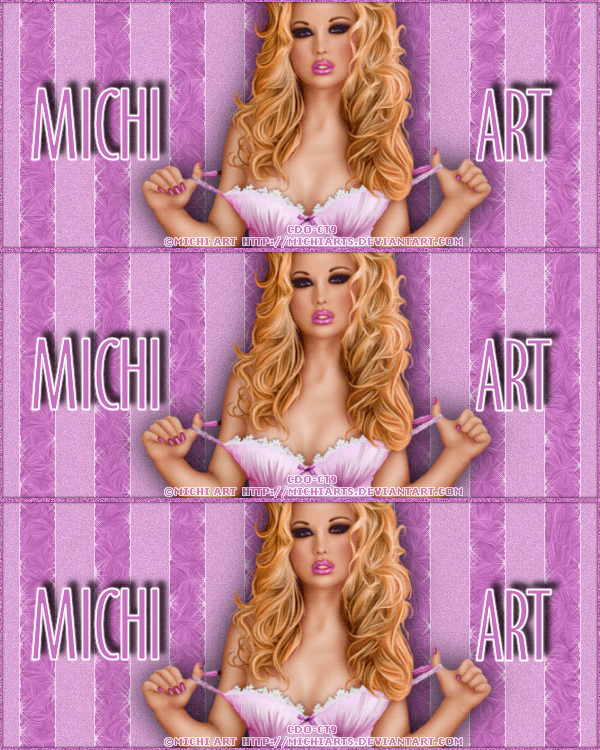
You will need: Font of your choice - I used one called North Condensed Light Tube of your choice - I will be using the artwork of Michi Art License and Tubes available at Creative Design Outlet
Filters: Mura's Meister/Copies Eye Candy 6: Textures/Swirl Xenofex 2/Constellation
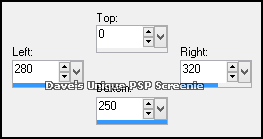
Ok let's begin Open a New Image 600x250 ... Flood Fill with a Light color from your Tube (not white) Layers> New Raster Layer Make a Custom Selection ... with the following settings
Flood Fill this Selection with the color grey ... #808080 Selections> Select None ... Effects> Edge Effects> Enhance Change this layers Blend Mode to Screen and the Opacity to 70% Effects> Mura's Meister> Copies ... *Line ... default settings
Selections> Select All ... Selections> Float ... Selections> Defloat ... Selections> Invert Activate the Bottom layer Effects> Eye Candy 6: Textures> Swirl Click on the "Settings" tab and then on the "Settings Tour (seamless tile)" folder then click on "Painterly: Random Twists" so it is highlighted blue Click on the "Basic" tab and click the "Random Seed" button once
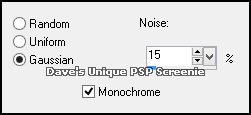
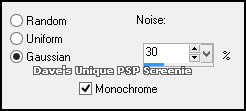
Selections> Invert Adjust> Add/Remove Noise> Add Noise ... with the following settings
Selections> Promote Selection to Layer ... Selections> Select None Activate the Top Layer ... Layers> Merge> Merge Down ... Rename this layer xen Duplicate this layer three times (for a total of 4 layers) Rename the Top xen layer Lines
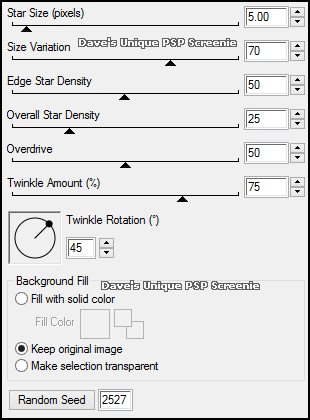
Activate the xen layer Effects> Xenofex 2> Constellation ... with the following settings
Activate the Copy of xen layer ... Edit> Repeat Constellation ... Hit the Random Seed button once Activate the Copy (2) of xen layer ... Edit> Repeat Constellation ... Hit the Random Seed button once Selections> Select None ... Hide the top 2 xen layers
Activate the Lines layer Paste your Tube as a New Layer, move to a suitable position and apply a suitable Drop Shadow
Layers> New Raster Layer ... Flood Fill with the Tube color you used earlier Selections> Select All ... Selections> Modify> Contract by 2 ... Hit DELETE on your keyboard Selections> Select None Adjust> Add/Remove Noise> Add Noise ... with the following settings
Effects> 3D Effects> Drop Shadow ... 0, 0, 100, 4, Black Add Copyrights and your Name
ANIMATING Edit> Copy Special> Copy Merged Edit> Copy Special> Copy Merged Go back to Animation Shop ... Edit> Paste> After Current Frame Edit> Copy Special> Copy Merged
Go back to Animation Shop ... Edit> Paste> After Current Frame Edit> Select All ... Animation> Frame Properties ... change to 15 And that's it. All that's left is to save your Tag ... If you wish to Preview it first View> Animation
Tutorial written on the 10/10/2013 ©David Hanslip |