|
First time trying one of my Tutorials? Then please check my Terms of Use before you continue
You will need: Font of your choice Tube of your choice - I will be using the artwork of Leonida Preda This artist is not currently selling his art in Tube Format
Filters: Mura's Meister/Copies Eye Candy 6/Gradient Glow
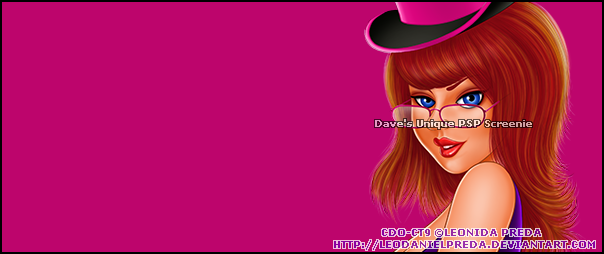
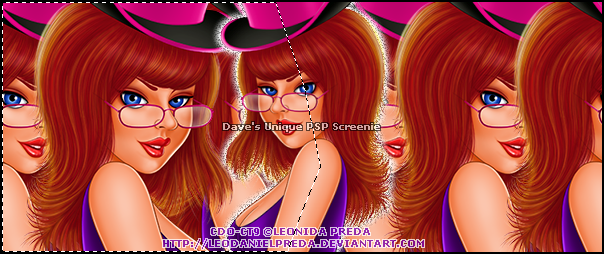
Ok let's begin Open a New Image 600x250 ... Flood Fill with a color from your Tube ... Rename this layer Color 1 Layers> New Raster layer ... Flood Fill with a second color from your Tube ... Rename this layer Color 2 Paste your Tube as a New Layer and position on the Right like so
Effects> Mura's Meister> Copies ... *Line ... change the Number to a suitable amount (I changed it to 5) Rename this layer MM ... Layers> Duplicate ... Image> Mirror Paste your Tube as a New Layer and position in the Middle of your Tag making sure it goes off canvas at least a bit at the Top and Bottom (You may also want to resize a bit like I did ... Check my sample Tag for reference)
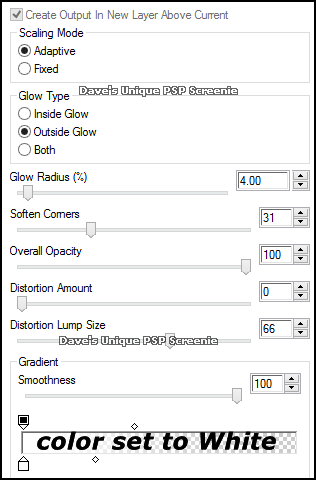
Layers> Duplicate ... Activate the bottom Tube layer Effects> Eye Candy 6> Gradient Glow ... with the following settings
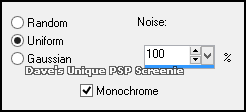
Adjust> Add/Remove Noise> Add Noise ... with the following settings
Using any method you like make a Selection around the left side of your Tag to midway through your Tube (I used the Freehand Selection Tool)
Activate the MM layer ... Hit DELETE once on your keyboard Activate the Color 2 layer ... Hit DELETE once on your keyboard
Selections> Invert Activate the Copy of MM layer ... Hit DELETE once on your keyboard Activate the Color 1 layer ... Hit DELETE once on your keyboard Selections> Select None
Activate the Color 2 layer ... Layers> Merge> Merge Down Activate the Copy of MM layer ... Layers> Merge> Merge Down Change this layers Blend Mode to Luminance(L) or Luminance
Activate the top Tube layer ... Layers> New Raster Layer Flood Fill with White ... Selections> Select All ... Selects> Modify> Contract by 1 Hit DELETE once on your keyboard ... Selections> Select None Adjust> Add/Remove Noise> Add Noise ... with the same settings as earlier
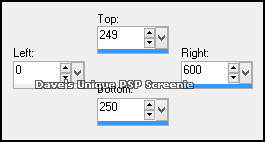
Layers> New Raster Layer Make a Custom Selection ... with the following settings
Flood Fill with White (you will probably need to zoom in) Selections> Select None ... Layers> Duplicate ... Image> Flip Layers> Merge> Merge Down ... rename this layer Noise
Layers> Duplicate ... Activate the Noise layer Adjust> Add/Remove Noise> Add Noise ... this time choose Gaussian Activate the Copy of Noise layer Adjust> Add/Remove Noise> Add Noise ... this time choose Random Hide both Noise layers for now ... Add Copyrights and your Name Edit> Copy Special> Copy Merged
ANIMATING
Go back to Animation Shop ... Edit> Paste> After Current Frame Go back to Animation Shop ... Edit> Paste> After Current Frame
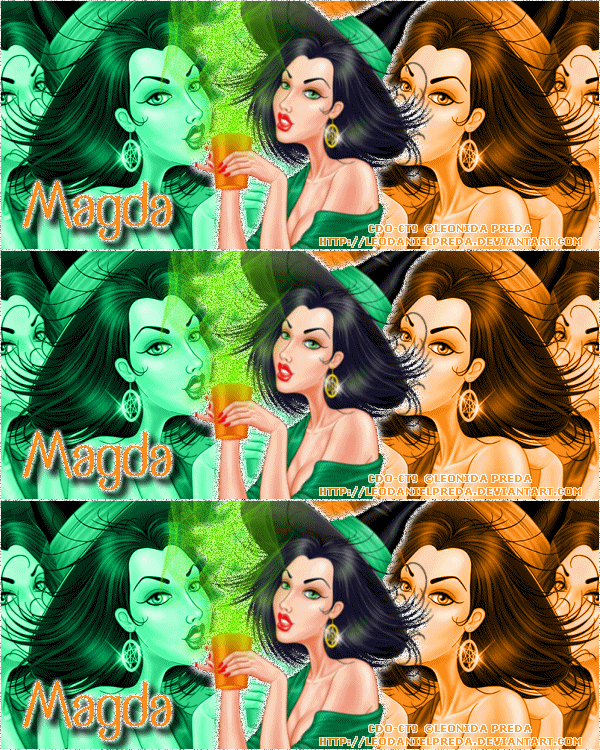
Here is another example also using the artwork of Leonida Preda
Tutorial written on the 27/10/2013 ©David Hanslip |